
Not every video needs to be made by you. In fact, there’s a lot of content out there on the internet that could be very useful to your learners. Imagine a great TED talk, software tutorial, screen capture, or a video explaining your favorite Business Operating System!
You can embed those videos right into Playbooks! We’ll show you how.
Step One: Locating the Embed Video Feature
When editing content, you’ll see the + Video button, select it.
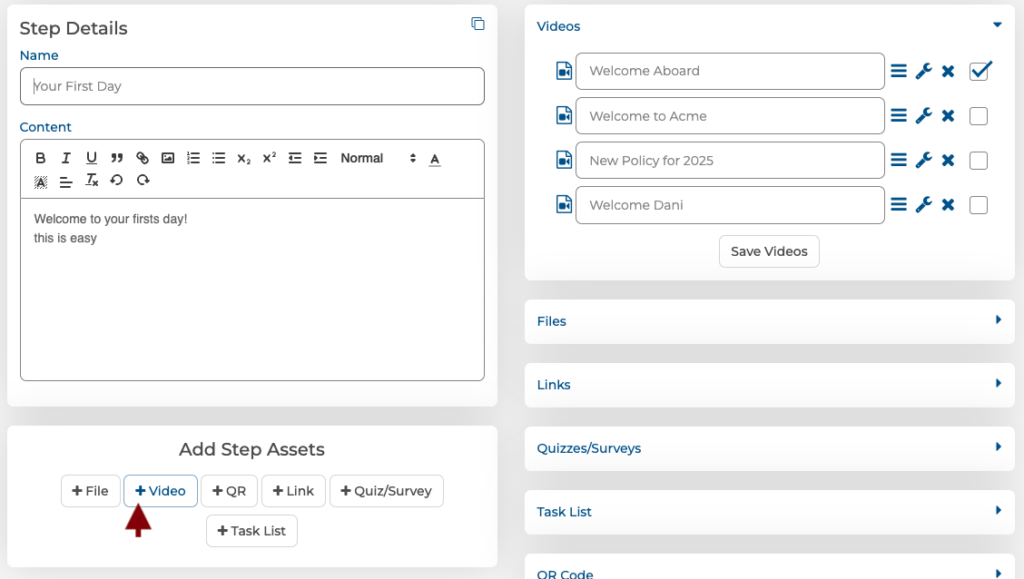
Step Two: Select the Embed option
It’s always the middle option.

Step Three: Add Your Video
Start by naming the video in the NAME section along the top.
Next paste the URL or link to the video. Options include YouTube, Vimeo, Loom or Wistia.
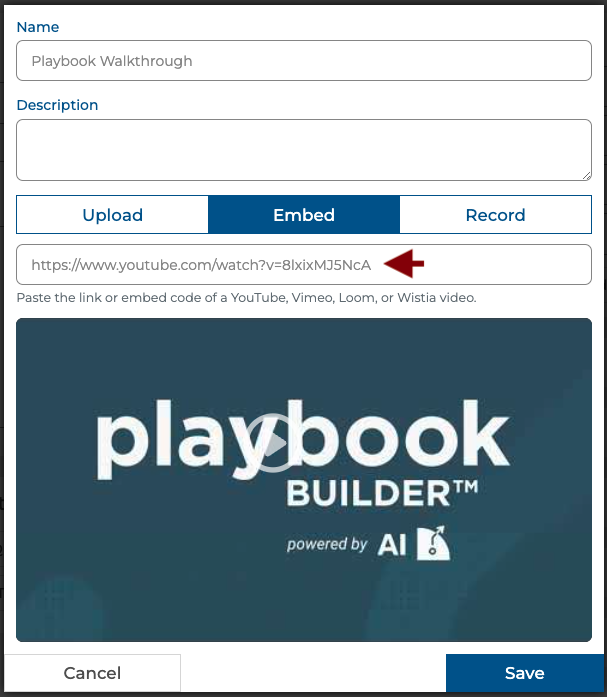
Troubleshooting and Rights Protection
Occasionally, a video won’t embed with a thumbnail. It will look grey and have a strange watermark. Don’t worry, you didn’t do anything wrong. And nothing is wrong with the software. It may be simply be that the owner of the video has protected it.
You may still be able to use the video! Simply delete characters in the link starting from the RIGHT side one at a time until you see the thumbnail. It doesn’t always work with privacy settings but can often do the trick.
A Friendly Reminder About Using Videos
If you’re planning to monetize your Playbook content (charging for access), it’s important to make sure the videos you include are your own or that you have permission to use them. Using someone else’s videos without their approval could lead to issues around intellectual property rights.
Stick with original content or properly licensed material to keep things smooth and hassle-free. After all, your unique insights are what make your Playbook truly valuable!
If you’re unsure about a specific video, it’s always best to double-check. Your Playbook, your rules—but let’s play fair!