
Video is a game-changer when it comes to creating effective learning content. For you, it’s quick and efficient to produce—just hit record, and you’re capturing everything learners need. For your audience, it’s incredibly impactful. Videos combine visual cues, tone of voice, body language, screen captures, and step-by-step instructions, making even the most complex topics easy to understand.
By using video, you’re creating dense, rich content that engages learners and delivers information in a way that’s both memorable and actionable. It’s a win-win for everyone!
Step One: Select RECORD in the Video Area
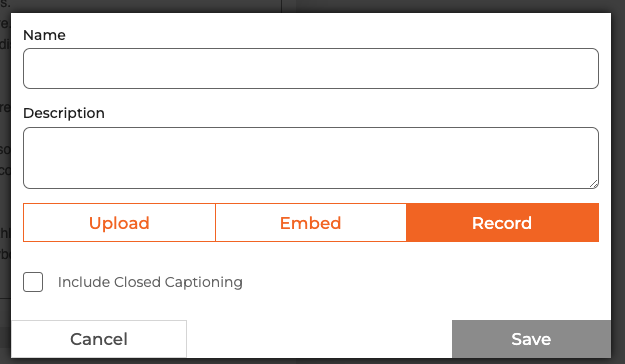
In any area where you can add video (account landing page, playbook landing page, module, or step) you can make a video using your onboard camera (if you have one).
First, select the RECORD option.
Step Two: Enable Your Camera And Mic
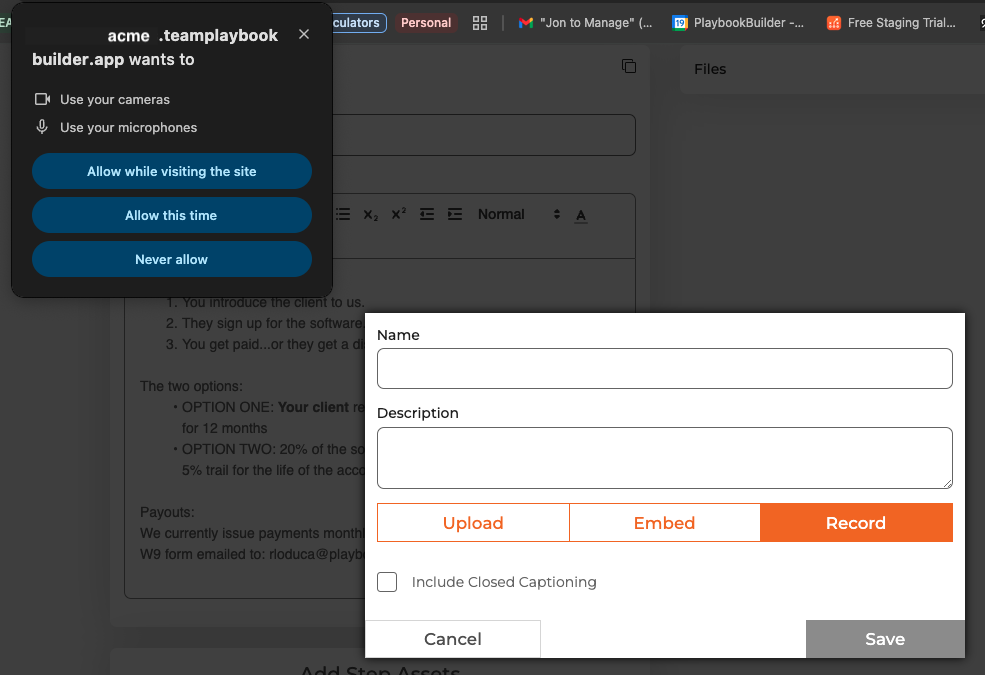
If it’s your first time making a video Google Chrome will confirm you would like to use the camera and microphone. Select “Allow while visiting this site”.
Step Three: Make a Video
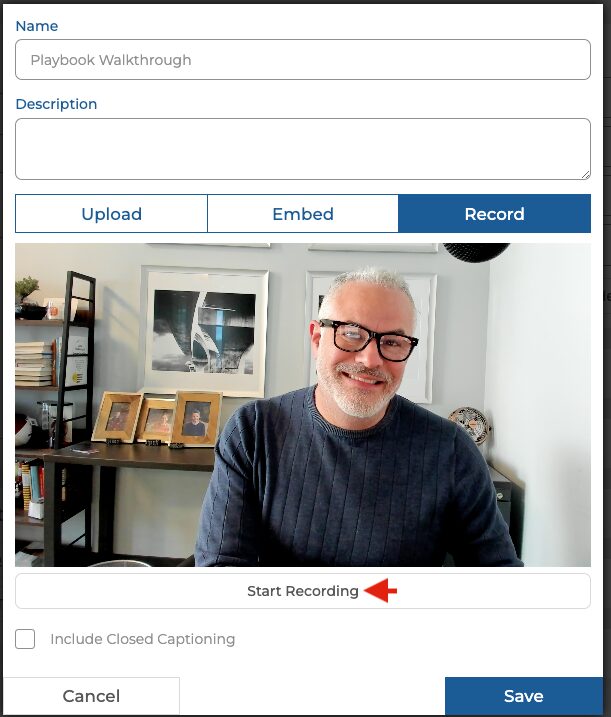
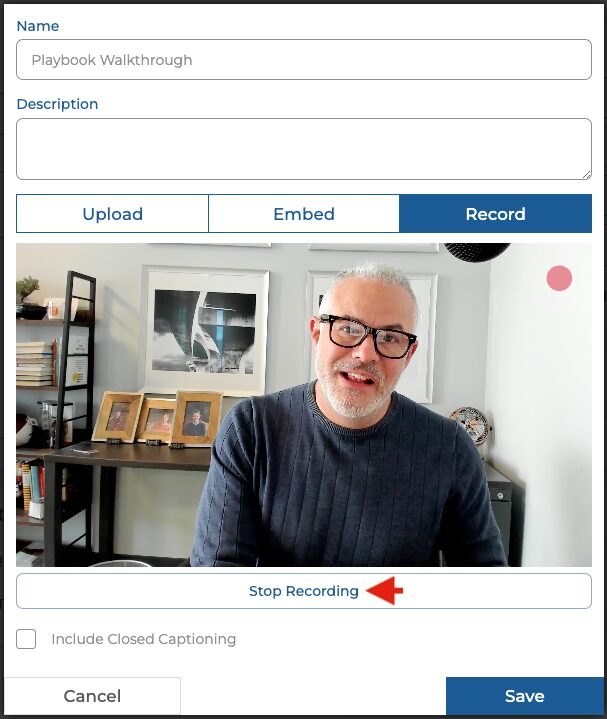
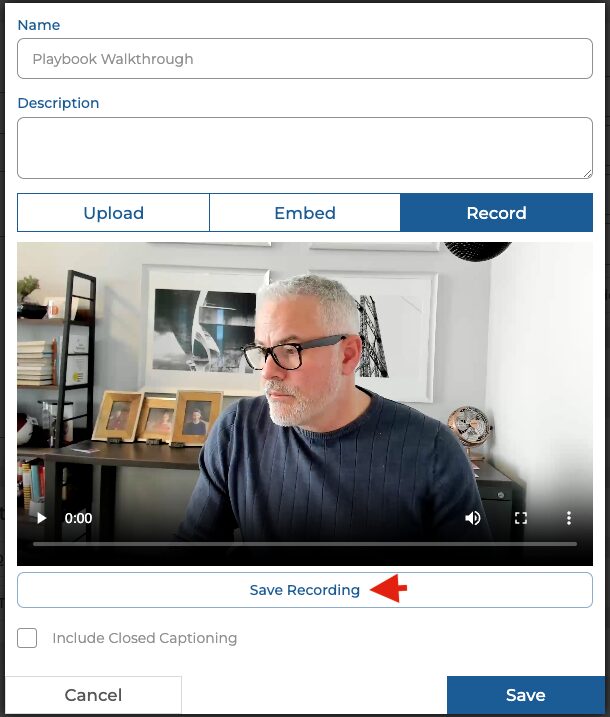
Once you allow your browser to engage the camera, you’ll see yourself in the screen. Press START RECORDING and make your video. When you are done, press STOP RECORDING. And finally, SAVE.
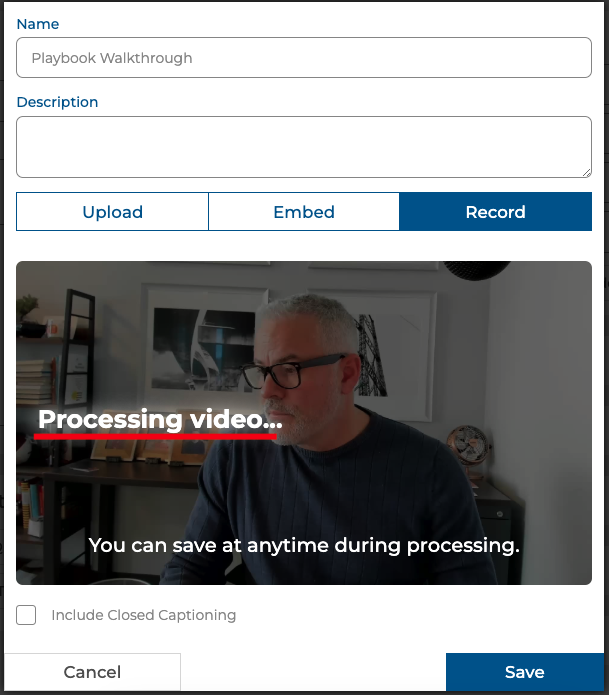
Once you hit save your video will initialize and process. As soon as it gets to PROCESSING. You can save and exit.
Step Four: Manage Your Video
Once you save your video it will show up in the Videos Section. You can change the order, delete, manage or feature your video here.
