
QR Codes are an incredibly useful way to get your learning off the desktop and get training to your learners wherever they may be. In PlaybookBuilder you can create QR Codes, then print them as PDFs…stick them on things around the office, job site, or even in collateral to bring your learning right to you learner.
Examples:
A QR code on a piece of equipment with a checklist and training videos
A QR code on a vehicle for maintenance or cleaning
A QR code on a custodial cart – what’s included as a checklist
A QR code on your office printer outlining how to change the printer cartridges. Helpful right?
Let’s learn how to do it!
Step One: Find the QR area in the Steps Area
First, locate where the QR Code creator is located. Inside of a Step, it’s where the other Assets are created.

Step Two: Create and Save Your QR Code
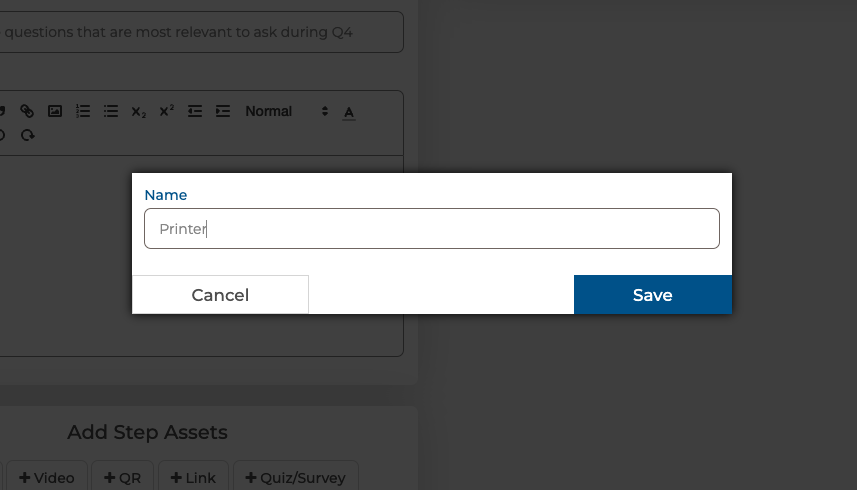
Once you click +QR in the Add Step Assets area, the pop-up below will come up. Name your QR code and hit SAVE to create it.
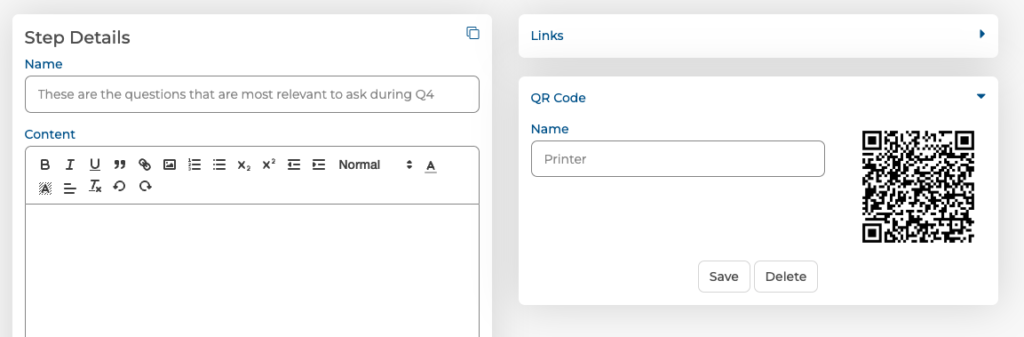
Your QR Code will immediately generate and reside on the right side of the screen amongst the other assets.
SAVE the CLOSE the step.
Step Three: Print and Use Your QR Code
Now when you open the step you’ll see the QR Code in the Step with a PRINT Icon under it.
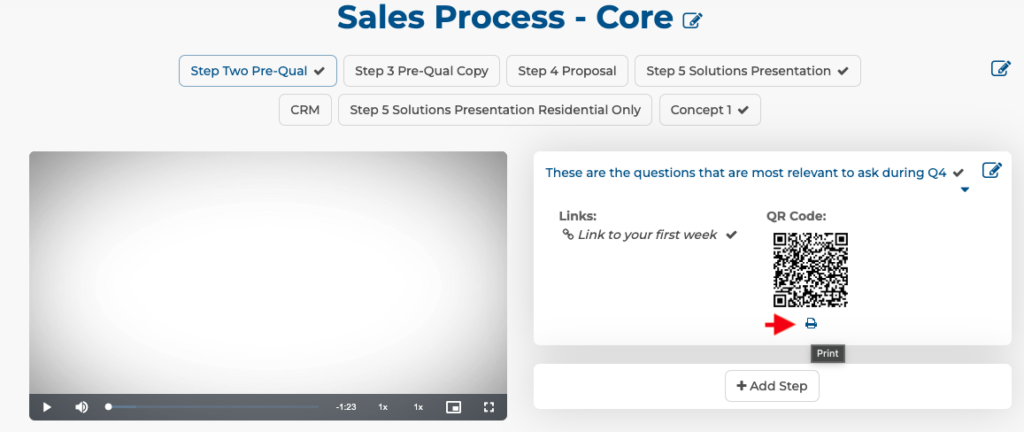
Click on that and the software will ask you for the size you’d like to create: Small, Medium, or Large.

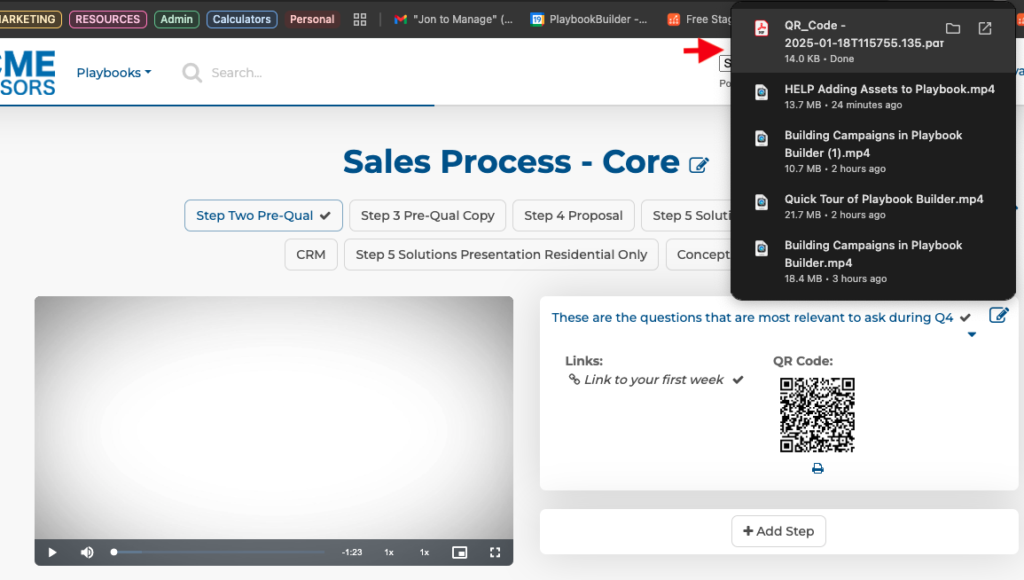
You’ll see the QR Code rendered as a PDF and you can print it, and affix it to anything.
SPECIAL BONUS!
Need QR codes for anything at all? Just type the following into your browser, we created a QR Code generator you can use for anything you need.
yourdomain.teamplaybookbuilder.app/qr-creator
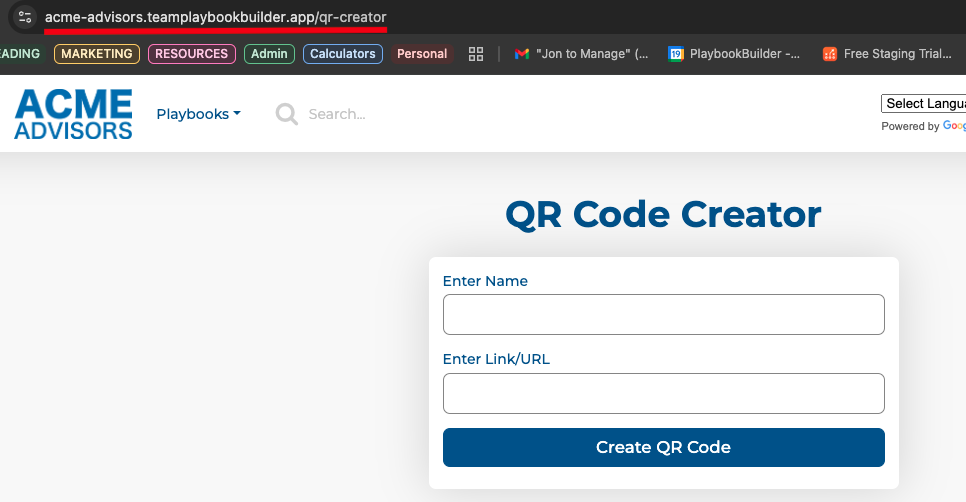
You’ll see this page and you can create QR Codes for anything you need. Enjoy!